Water Apps · Widgets, Reminders and Features
Water Tracker Notion: Build a Daily Log With a Progress Bar
A log with a row per drink, a button that adds 250 ml, a Days table that totals them, and where reminders stop.
 By the Glubbo Editorial Team · Updated Nov 7, 2026 · 14 min read
On This Page
- How Do You Make a Water Tracker in Notion?
- How Do You Add a Progress Bar to a Notion Water Tracker?
- Can You Log Water in Notion With One Tap?
- How Do You Get a New Row Every Day?
- Can Notion Remind You to Drink Water?
- Can You Put a Notion Water Tracker on Your Home Screen?
- How Do You See Your Week in Notion?
- Is a Notion Water Tracker Better Than a Water App?
- Set It Up Tonight and Check It Tomorrow Morning
- Sources
Short answer
One log, one row per drink, one button, one total a day.
- A button with the Add page to action adds a 250 ml row to a Water log in one press.
- A Days database links to the log, adds the drinks with a Sum rollup and draws the bar.
- The button cannot pick the day, a widget opens a page, a reminder fires once.
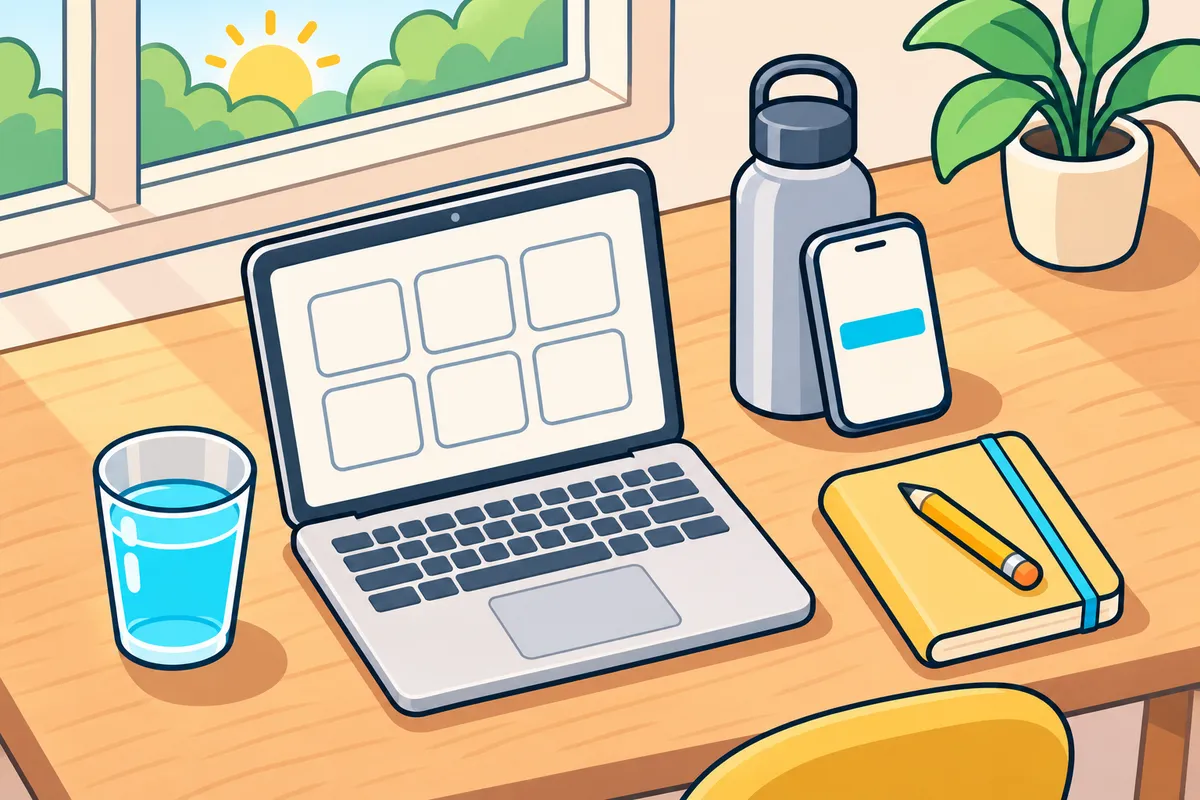
A Notion water tracker works best as two databases: a Water log with one row per drink, and a Days database with one row per day that adds the drinks up against a goal. A button adds a 250 ml row to the log in one press, but Notion's help does not show that button choosing the day, so you pick the day in the new row. It suits a laptop at work, where Notion is already open.
On a phone it takes more steps than a water app, because Notion's mobile widgets give quick access to a page and a database reminder fires once. Menu names here follow Notion's help pages as of 7 November 2026.
How Do You Make a Water Tracker in Notion?
Make two databases and link them. The Water log holds every drink as a row with an Amount (ml) number, and the Days database holds a Goal (ml) number, a rollup that adds the day's drinks and three formulas. The button and the daily template come after.
The Whole Build in Five Steps
- Make a Water log and a Days database, then link them
- Add the Sum rollup and the Progress, Bar and Left formulas
- Add a +250 ml button that adds a row
- Repeat a Days template every day
- Set a Date for the one reminder
Make the Two Databases and Link Them
In a database that already has properties, select + next to the right-most property, name it and pick its type. The Name property comes with every database. Notion's own list says Created time is "auto-generated and not editable", which is what you want for the day.
| Database | Property | Type | What it holds |
|---|---|---|---|
| Water log | Name | Comes with the database | The word Water, set by the button |
| Water log | Amount (ml) | Number | Milliliters in this drink, such as 250 |
| Water log | Day | Relation | The Days row this drink belongs to |
| Water log | Created time | Created time | When Notion created the row |
| Days | Name | Comes with the database | The word Water, filled in by the template |
| Days | Goal (ml) | Number | The day's target, such as 2000 |
| Days | Drunk (ml) | Rollup | The Sum of Amount (ml) over that day's drinks |
| Days | Progress, Bar, Left (ml) | Formula | Share of the goal, ten squares, milliliters to go |
| Days | Created time | Created time | The day Notion created the row |
To link them:
- Add a property to the Water log, choose
Relationand search for the Days database. - Click the toggle that says
Show onDays so the link appears on both sides, then name the Days side Drinks. - Click the blue
Add relationbutton.
Notion lets you limit a relation to 1 page, which fits a drink that belongs to one day.
For the total, add a property to Days and choose Rollup from the Property type menu. Notion asks for three things:
- The relation (Drinks).
- The related property (Amount (ml)).
- The calculation, which is
Sum("the sum of the numeric properties for related pages").
Its formula reference says a rollup returns a number, a date or a list depending on how it is set up, so a Sum rollup gives the formulas below a number to work with.
Milliliters give a glass and a bottle one unit, so both buttons add to the same total. The 2000 is a placeholder, because your own daily amount depends on your size, activity and climate.
A 250 ml button only helps if your glass holds 250 ml, so measure it first. The glass-size page shows how.
How Do You Add a Progress Bar to a Notion Water Tracker?
Add three Formula properties to the Days database. Progress divides Drunk by Goal and stops at 1, which is 100 %. Bar repeats a filled square for each tenth done and an empty square for the rest, as plain text that shows in any view displaying the property.
To add a formula, follow Notion's path: select the slider icon at the top of the database, then Edit properties, New property, Formula, and Edit formula. Type each formula below into its own property. These use:
- The functions
prop(),if(),round()andrepeat(). - The operators
+,-,/and>=.
Notion's formula reference lists or uses all of them in its examples, including joining two pieces of text with +.
The Progress Formula
if(prop("Drunk (ml)") >= prop("Goal (ml)"), 1, prop("Drunk (ml)") / prop("Goal (ml)"))
The Bar Formula
repeat("■", round(prop("Progress") * 10)) + repeat("□", 10 - round(prop("Progress") * 10))
The Left Formula
if(prop("Drunk (ml)") >= prop("Goal (ml)"), 0, prop("Goal (ml)") - prop("Drunk (ml)"))
The cap at 1 matters. Without it, a day at 2750 ml against a 2000 ml goal would give a progress of 1.375, so Bar would ask for fourteen filled squares and a negative four empty ones, and the cell would show an error. With the cap, the bar stays full.
If you open the formula editor from a database row, Notion shows a live preview of the result for that row. The table shows what the three formulas should give for four totals of the Drunk (ml) rollup, so you can check them against a Days row whose drinks add up to the same amount.
| Drunk (ml) | Goal (ml) | Progress | Bar | Left (ml) |
|---|---|---|---|---|
| 600 | 2000 | 0.3 | ■■■□□□□□□□ | 1400 |
| 1250 | 2000 | 0.625 | ■■■■■■□□□□ | 750 |
| 2000 | 2000 | 1 | ■■■■■■■■■■ | 0 |
| 2750 | 2000 | 1 | ■■■■■■■■■■ | 0 |
At 1250 ml the progress is 62.5 %, and round() takes six tenths of the bar because 6.25 rounds down to 6. Notion can show a Number property itself as a progress bar, but the drinks total is a rollup, and the text bar needs no setting and sits beside a value you can sort by.
Can You Log Water in Notion With One Tap?
Yes for the drink, and not for the day. A button with the Add page to action adds a row to the Water log with Amount (ml) already set to 250, so each glass costs one press. Notion's help pages describe what the action does and none shows it filling in a relation, so you choose the day in the new row.
Build the button on the page you open to log, such as a page called Water. Notion's steps for a button are these:
- Type
/in the page, then selectButton. - Give the button a name and emoji, such as +250 ml.
- Select
New actionand chooseAdd page to. Notion says this action "will add a page to a database of your choosing, and edit the properties of that page". - Choose the Water log as the database and name the new entry Water. Notion's button guide says
Edit another propertyfills in more properties, so pick Amount (ml) there and enter 250. - Select
Done.
Each press adds one row to the Water log, and you open it and select its Day cell to pick today's Days row. Two details make this easier:
- Every Days row is named Water, so rename today's row to the date once, which makes it easy to find in the list.
- In the evening, the Drinks cell on today's Days row holds the same link, so you can add several rows there at once.
Notion's help has no example of a button that adds to a number, and none that fills a relation for you. This build uses neither, so every step above is one that a Notion page states. For a bottle, add a second button the same way with 500 in place of 250.
On the phone you open Notion, open the Water page, press the button and pick the day, which is four steps. A water app with a logging widget skips most of them.
How Do You Get a New Row Every Day?
Make a template in the Days database and set it to repeat daily. Type its values once, and Notion adds a fresh Days row at the time you choose with your goal already in it, so the only morning typing left is the date in the row's name.
What the Template Carries
3 items- Name: Water
- Goal (ml): 2000, or your own number
- Created time: filled in by Notion on each new row
Notion's steps for the template are short:
- Open the dropdown arrow beside the
Newbutton at the top right of your database and choose to add a template. - Give the template page a title. That title becomes the template's name.
- Set property values. They "will show up identically on each page created with the template".
- Open the dropdown next to
Newagain, select•••next to the template, open the dropdown next toRepeat, and select daily. Set a start date and the time it should repeat.
Notion lets templates repeat daily, weekly, monthly or yearly. Because the template runs on its schedule, a day you never log still gets a Days row, with no drinks linked to it. Use the New button to add a row by hand only on days the template did not run.
Can Notion Remind You to Drink Water?
Only once per date. A database reminder needs a Date property: you set a date and a time, then choose how long before to be reminded. Notion's reminders page says recurring reminders are not available yet, so a daily nudge means a new date on every row.
To set it up, click the Date property on a row, set the date, add a specific time, and choose the lead time. The page's own example is 30 minutes beforehand. Notion then sends a push notification in the mobile app "within five minutes of the reminder time", and when Notion is not open it sends a mobile push and an email.
The limit shows when you want more than one nudge. Each reminder needs its own Date property with a date and time filled in on every new row.
Three nudges a day need three Date properties
- 10 AM
- 2 PM
- 6 PM
One reminder on the evening row is a fair use, since it asks whether you reached the goal before bed. For a nudge every two hours, a repeating alarm on your phone does the job with no setup, and the alarm page compares those with water reminder apps.
Can You Put a Notion Water Tracker on Your Home Screen?
Yes, as a shortcut to the page and not as a logging button. Notion's widgets come in four types, Page, Favorites, Recents and AI shortcuts, and a Page widget shows the workspace or page you pick. The press that adds a drink still happens on the page.
Notion's widget page gives the steps for each phone.
| iPhone or iPad | Android | |
|---|---|---|
| Needs | iOS 14.0 or above | Notion from Google Play |
| Open the menu | Press and hold an app icon, then edit the home screen | Press and hold the Notion app and tap Widgets |
| Find it | Tap + in the top-left corner and search for Notion | Swipe through the options |
| Place it | Pick a widget and drag it | Drag it onto the home screen |
| Choose the page | Press and hold the widget, then pick a workspace or page | Tap the widget and pick a workspace or page |
Point a Page widget at the Water page that holds the button, so the widget lands you one press from a new row. Notion's page describes the widgets as quick access to your pages and does not describe a button on them that changes a value. Several water apps do put a logging button on their widget, as the iPhone and Android widget pages show.
How Do You See Your Week in Notion?
Sort the Days table by Created time and read each day's Drunk, Bar and Left. For a total over several days, filter the Water log and use the Calculate menu under the Amount column to show a Sum. Each of these is a separate view of the same rows.
| View | Set it up | What you read |
|---|---|---|
| Days table, newest first | + next to the database name, a Table, then Sort by Created time |
Today's row on top, each day's bar |
| Sum footer on the Water log | Click the Amount (ml) property name, Calculate, Sum |
The milliliters in the rows shown |
| Chart of the Water log | + next to the database name, then Chart |
Amount (ml) against Created time |
To add a view, select + next to your database name and pick a type. Open the settings menu at the top of the database and select Sort under View settings, then choose Created time. Filter works the same way, under Filter in View settings.
For the Sum, click the property name in the table, hover over Calculate and pick Sum, which Number properties offer along with Average, Median, Min and Max. Filter the rows first, then hover over the bottom of a column.
Notion's guide to advanced filters says you can calculate a sum or average of just those rows.
For a chart, select + next to your database name or the current view name and choose Chart. Notion lists Vertical bar chart, Horizontal bar chart, Line chart, Donut chart and Number chart, and you set the X axis What to show to Created time.
Everyone on a paid plan can create unlimited charts, and the Free plan gets one.
Is a Notion Water Tracker Better Than a Water App?
It is better when you already work in Notion all day and want the log beside your other pages. A water app is better when you drink away from a screen, because it needs fewer steps and can remind you on a repeating schedule. The built-in limits are the day link, the reminder and the widget.
A Notion log
- Nothing new to install if you already use Notion
- You choose every column, goal and button size
- On a phone: open Notion, open the Water page, press the button, pick the day
- A reminder fires once per Date, never on a repeat
A water app
- Nothing to build, a goal and reminders come set up
- Many log from a widget or a watch
- Reminders repeat through the day
- Your data lives in the app, not on a page you shape
Notion is one of several ways to record a drink, and the other ways to log range from a tally on paper to a phone app. If you would rather work in a spreadsheet, the Excel and Google Sheets tracker uses a grid with COUNTIF.
For a printable sheet that fits any habit, not only water, see the habit tracker template.
Which Log Suits You
- I work in Notion on a laptop all dayThe Notion log, with a +250 ml button
- I drink mostly away from my deskA water app with a logging widget
- I need a nudge every two hoursA repeating alarm or a reminder app
- I share the log with a partnerA shared Notion page with edit access
Set It Up Tonight and Check It Tomorrow Morning
Build the two databases, the button and the template tonight, then run the checks below tomorrow after the template's start time. The morning check tells you whether the template's Days row came with the goal in it, which a row made by hand cannot show.
Five Checks for Tomorrow Morning
5 items- A new Water row appeared in Days at the time you set
- Goal (ml) is already filled in on that row
- One press of +250 ml adds a Water log row with Amount 250
- After three presses with the day picked, Drunk reads 750 and Bar shows four squares
- The one reminder arrives within a few minutes of its time
If a check fails, fix that one property and check it again before you add anything else. Once all five pass, add a second button for your bottle and move the reminder to the hour you most often forget.
General information for healthy adults, not medical advice. If a doctor has set your fluid amount, follow that.

More in Water Apps

Sources
- Notion Help Center. Buttons, 2026.
- Notion Help Center. Make work more efficient with database button properties, 2026.
- Notion Help Center. Relations and rollups, 2026.
- Notion Help Center. Database properties, 2026.
- Notion Help Center. Formulas, 2026.
- Notion Help Center. Formula syntax and functions, 2026.
- Notion Help Center. Database buttons, 2026.
- Notion Help Center. Database templates, 2026.
- Notion Help Center. Reminders, 2026.
- Notion Help Center. Mobile widgets, 2026.
- Notion Help Center. Database views, filters, sorts and groups, 2026.
- Notion Help Center. Table view, 2026.
- Notion Help Center. Using advanced database filters, 2026.
- Notion Help Center. Chart view databases, 2026.
Sources checked by the Glubbo Editorial Team on Nov 7, 2026. General information, not medical advice. How we write and check our guides.