Water Apps · Widgets, Reminders and Features
Water Tracker iPhone Widget: Log a Drink From Your Home Screen
Nine iPhone water trackers with widgets, what a tap on each one does, which are free, and how to keep a widget current.
 By the Glubbo Editorial Team · Updated Oct 19, 2026 · 9 min read
On This Page
- Which Water Tracker Apps Have an iPhone Widget?
- Can You Log Water From an iPhone Widget?
- What Do the Small, Medium and Large Widgets Show?
- Can You Put a Water Tracker on the iPhone Lock Screen?
- Can You Log Water From StandBy or Control Center?
- Why Is My Water Widget Not Updating?
- Is There a Free Water Tracker Widget for iPhone?
- Which Widget Suits Your Day?
- How Do I Add a Water Widget to My iPhone Home Screen?
- Sources
Short answer
Pick an app whose widget logs with one tap.
- Widget buttons need iOS 17 or later; on older iPhones a tap only opens the app.
- Hydro Coach, GlassWater and Water Tracker: Hydration Log say their widget adds water.
- Apple gives a widget about 40 to 70 refreshes a day, so a slow one may be the app's fault.
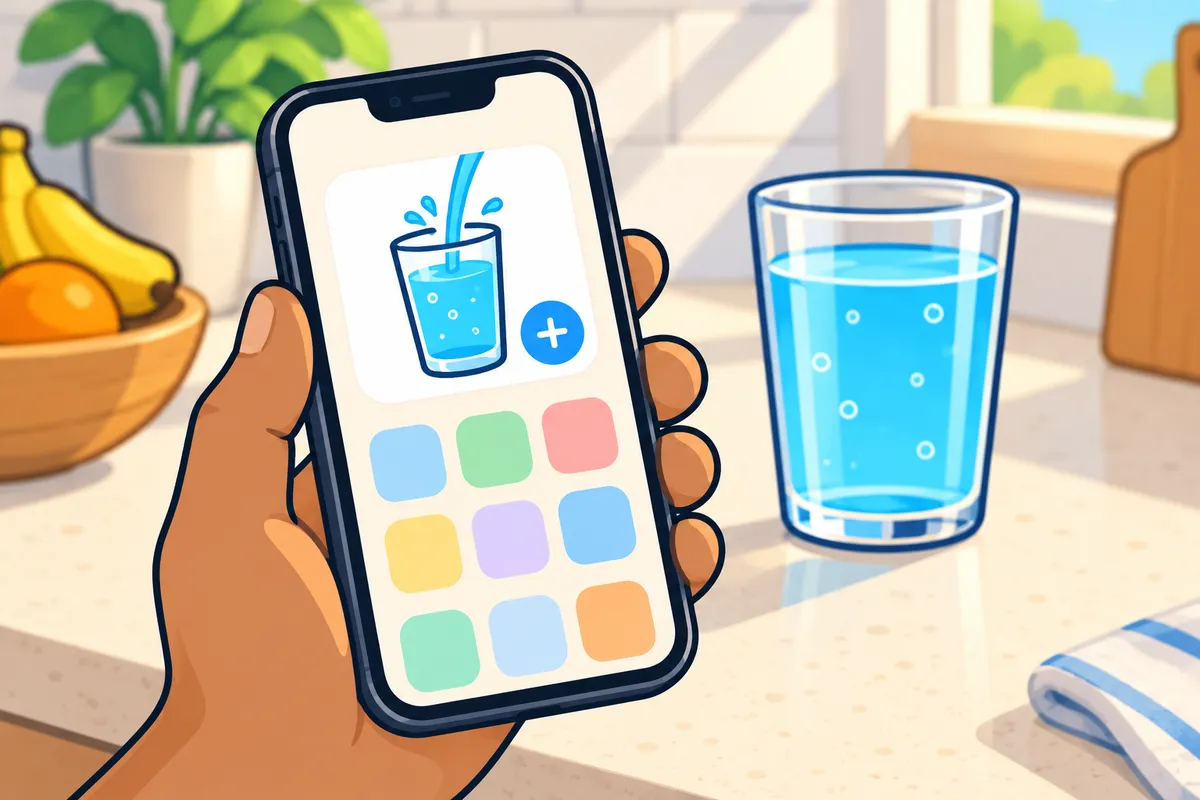
A widget saves you the step that kills most water logs: opening the phone, finding the app and waiting for it to open. The best widget is the one that logs your usual glass in one tap, right where your thumb already is.
On iOS 17 or later, a water widget can carry a button that logs a drink without opening the app. What each app's widget does comes from its US App Store page as of 19 October 2026, and every rule about widgets from Apple's support and developer pages.
Which Water Tracker Apps Have an iPhone Widget?
Nine apps name a widget on their App Store page or, for two of them, in the description of the paid tier. They differ in four ways:
- whether a tap logs a drink
- whether the widget also fits the Lock Screen
- whether it is free
- how old an iPhone the app still supports
Five water apps with widgets, side by side
GlassWater
Widgets plus a Live Activity
- Small, medium, large, quick-add buttons
- Live Activity, Dynamic Island
- Needs iOS 26
Suits you if your iPhone runs iOS 26 and you want to log from anywhere on screen.
Waterllama
Home, Lock Screen, Control Center
- Interactive Smart Stack widgets on Watch
- 4.9 from 163K ratings
- Needs iOS 17
Suits you if you want the widget on every surface, watch included.
WaterMinder
Many widget sizes
- Home Screen and Lock Screen widgets
- Extra large portrait with recent logs
- Subscription from $2.99 a month
Suits you if you want a big widget that shows your recent drinks.
Logs from the widget
- See progress and log from the widget
- Sends drinks to Apple Health
- Needs iOS 17
Suits you if you want a widget that logs and an Apple Watch app.
Water Tracker: Hydration Log
Tap to add water
- Home Screen widget adds water
- Runs on iOS 15
- 4.3 stars, but only 6 ratings
Suits you if you want a small app whose widget adds water.
Plant Nanny, the sixth, promotes "our cute water reminder widget" for checking your plant and your habit, and runs on iOS 15. Its listing does not say whether a tap logs a drink.
Two large apps keep the widget behind a plan:
- Water Reminder - Daily Tracker (4.7 stars from 79K ratings) lists "app widget" among its Premium items.
- Drink Water ∙ Daily Reminder (4.6 from 26K) lists "Widget" among what a subscription unlocks.
Every Widget Fact in One Table
| App | Home Screen | Lock Screen | Tap logs a drink | Widget free? | Oldest iOS |
|---|---|---|---|---|---|
| GlassWater | 3 sizes | A Live Activity, not a widget; also Dynamic Island | "Quick-add buttons" | Yes, "completely free" | 26 |
| Waterllama | Yes, up to extra large | Yes, plus Control Center | Not stated for iPhone | Lock Screen widgets in the free list | 17 |
| WaterMinder | Several sizes | Yes | Not stated | Not itemised; 7-day trial | 17 |
| Hydro Coach | Yes | Not stated | "Log drinks directly from your home or widget screens" | Not itemised | 17 |
| Water Tracker: Hydration Log | Yes | Not stated | "Add water with a tap" | Not in its Premium list | 15 |
| Plant Nanny | Yes | Not stated | Not stated | Not itemised | 15 |
| Water Reminder - Daily Tracker | Premium item | Not stated | Not stated | No, Premium | 15 |
| Drink Water ∙ Daily Reminder | Subscription item | Not stated | Not stated | No, subscription | 15 |
| Glubbo |
Premium item | Premium, on iPhone | "Logs a drink in one tap" | No, Premium | 15.1 |
Glubbo is our app: its App Store page and its Google Play listing put the home screen widget under Premium. On iPhone, Premium also lets you add a Glubbo widget to the Lock Screen to see today's water. The tap column quotes each listing's words.
Can You Log Water From an iPhone Widget?
Yes, on iOS 17 or later, when the app builds a button into its widget. Apple's developer guide on interactive widgets says widgets "can include buttons and toggles to offer specific app functionality without launching the app", and the button type behind that arrived with iOS 17.
On iOS 16 or older a widget can only show your progress. A tap on it opens the app, so logging still takes two steps.
iPhone on iOS 17 or later
- A widget button can log your glass
- The app stays closed
- Small, medium and large widgets can hold buttons
iPhone on iOS 16 or older
- The widget shows your progress only
- A tap opens the app
- You log inside the app as before
Apple also says a button "should do more than open the app". So when a listing says its widget logs water, the drink is saved by the tap itself.
What Do the Small, Medium and Large Widgets Show?
The listings that describe sizes agree on a pattern: small widgets show progress, and larger ones add buttons or history.
- GlassWater lists "small, medium, and large widgets with progress rings and quick-add buttons".
- Waterllama's latest release adds extra large and large Home Screen widgets.
- WaterMinder describes an extra large portrait widget with hydration progress, recent logs and its characters.
- Hydration Log's widgets "show today's level and add water with a tap".
Pick the size that shows a button if your app offers several, because a small one often shows a ring and nothing else.
Can You Put a Water Tracker on the iPhone Lock Screen?
Yes, on iOS 16 or later, if the app offers a Lock Screen widget; WaterMinder and Waterllama say they do. GlassWater takes another route: its progress "lives on your Lock Screen and Dynamic Island" as a Live Activity, from which its listing says you can add water without opening the app.
Apple's steps, as its widget help page describes:
- Touch and hold the Lock Screen until Customize appears.
- Tap Customize.
- Tap Add Widgets.
There is a catch for logging. Apple's guide says that "on a locked device, buttons and toggles are inactive" until you sign in with Face ID or your passcode. A Lock Screen widget shows how far you are; Face ID or your passcode still stands between you and the tap that logs.
Can You Log Water From StandBy or Control Center?
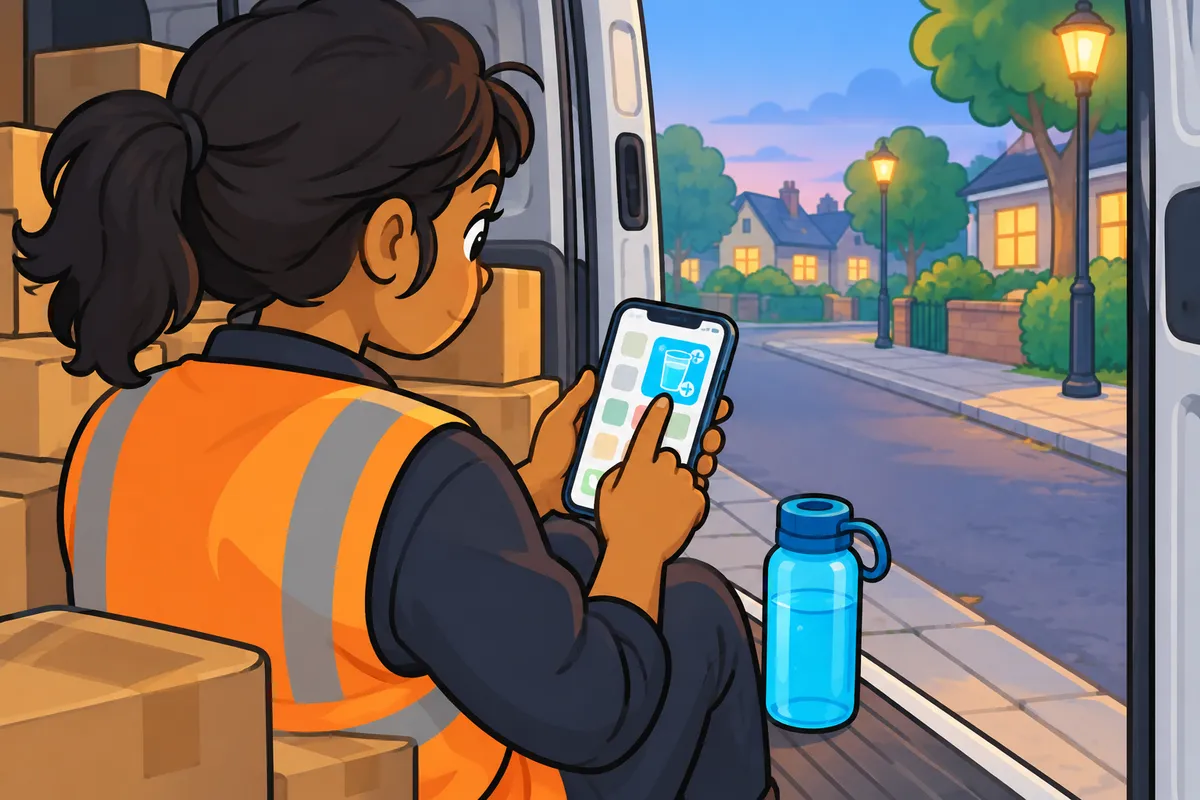
From StandBy, yes, when the widget has a button; from Control Center, only if the app ships a control for it. Apple's widget guide says "you can perform tasks by tapping widgets on your Home Screen, Lock Screen, or StandBy", so the same one-tap widget works in all three places.
StandBy on a Charger
StandBy turns a charging iPhone into a display for widgets. Per Apple's StandBy page:
- Turn it on in Settings.
- "Connect iPhone to a charger and set it down on its side, keeping it stationary".
- Swipe sideways to reach your widgets.
A phone charging on its side at your desk becomes a water widget you can tap from your chair. At night, StandBy's Night Mode tints the screen red so it does not light up the bedroom.
Control Center
Control Center holds controls rather than full widgets. You add one by tapping Add a Control at the bottom of the editing screen, per Apple's Control Center guide. Of the apps here, only Waterllama lists Control Center among its widget places.
Why Is My Water Widget Not Updating?
Usually because the widget is waiting for its next refresh. Apple gives each widget a daily budget, which for a widget you look at often "typically includes from 40 to 70 refreshes", or roughly one every 15 to 60 minutes, its developer guide says.
- 40–70
- refreshes a day for a widget you view often
- 15–60 min
- rough gap between refreshes
- 24 h
- window the budget covers
At 40 refreshes over 24 hours a widget refreshes about every 36 minutes, and at 70 about every 21, so a glass logged at 10:00 may not show on a widget that waits for its turn until about 10:36. The same guide says reloads do not count against the budget while the widget's app is in the foreground, which is why opening the app often fixes a stale widget.
An app can also ask for a reload when its data changes, such as when you log a drink inside it, so a widget that stays stale for hours points at the app.
Fixes to Try in Order
Start with the quickest. Apple's Low Power Mode page lists that it turns off Background App Refresh, which some apps use to keep their data fresh; reminders that stop arriving can share that cause.
When the widget lags behind
4 items- Open the app once; a well-built app reloads its widget when your log changes
- Turn Low Power Mode off if your battery allows
- Remove the widget and add it again for a fresh copy
- Update the app; widget fixes often arrive in release notes
Is There a Free Water Tracker Widget for iPhone?
Yes, in at least three apps:
- GlassWater calls itself "completely free" with optional purchases from $0.99 to $9.99.
- Waterllama lists Lock Screen widgets in its free features.
- Hydration Log keeps its Home Screen widget out of its Premium list.
Two large apps, Water Reminder - Daily Tracker and Drink Water ∙ Daily Reminder, put the widget behind a plan, so check the paywall before you count on it.
WaterMinder offers every feature free for only 7 days, while Waterllama keeps most of its app free. If you prefer no app at all, a paper sheet on the fridge does the same job; the printable water tracker makes one sized to your goal.
Which Widget Suits Your Day?
The right widget depends on where you look most. These pairings follow the App Store pages.
Pick a widget by where you look
- My phone is in my hand all day and I want to log in one tapA Home Screen widget with a button: Hydro Coach, GlassWater or Hydration Log
- I glance at the Lock Screen more than I open the phoneWaterMinder or Waterllama; GlassWater as a Live Activity
- I log from my wristWaterllama's interactive Watch widgets
- My iPhone cannot run iOS 17Hydration Log or Plant Nanny (iOS 15); the widget shows progress, and buttons need iOS 17

How Do I Add a Water Widget to My iPhone Home Screen?
Install the app and open it once so it can set up its widget. Then follow the steps from Apple's widget help page; they take under a minute.
Add a water widget to the Home Screen
- Touch and hold a widget or an empty area until the apps jiggle
- Tap Edit in the upper-left corner, then Add Widget
- Select your water app, pick a size, tap Add Widget
- Tap Done, then drag the widget to your first page
If your widget logs a fixed amount, set that amount to the glass or bottle you actually use, or measure your usual glass first.
General information for healthy adults, not medical advice. If a doctor has set your fluid amount, follow that.
More in Water Apps
Sources
- Apple Support. How to add and edit widgets on your iPhone, 2026.
- Apple Developer Documentation. Adding interactivity to widgets and Live Activities, 2026.
- Apple Developer Documentation. Button init(intent:label:), availability iOS 17.0, 2026.
- Apple Developer Documentation. Keeping a widget up to date, 2026.
- Apple Support. Use Low Power Mode to save battery life on your iPhone, 2026.
- Apple App Store (Funn Media). Water Tracker by WaterMinder, 2026.
- Apple App Store (Llama Luna Apps). Water tracker Waterllama, 2026.
- Apple App Store (Wired Betterment). Hydro Coach - Hydration App, 2026.
- Apple App Store (Felipe C Canhameiro). GlassWater – Water Tracker, 2026.
- Apple App Store (Ivan Terekhin). Water Tracker: Hydration Log, 2026.
- Apple App Store (SPARKFUL INC.). Plant Nanny Cute Water Tracker, 2026.
- Apple App Store (VGFIT LLC). Water Reminder - Daily Tracker, 2026.
- Apple App Store (AppRover). Drink Water ∙ Daily Reminder, 2026.
- Apple App Store (Glubbo). Glubbo - Drink Water Reminder, 2026.
- Apple Support. Add, edit, and remove widgets on iPhone, 2026.
- Apple Support. Use StandBy to view information at a distance while iPhone is charging, 2026.
- Apple Support. Use and customize Control Center on iPhone, 2026.
Sources checked by the Glubbo Editorial Team on Oct 19, 2026. General information, not medical advice. How we write and check our guides.